Showing posts with label Network. Show all posts

Monday, February 6, 2012

Pass through learning linux with DR.BOB

Hi, welcome back to Bersantai~_~Relaxing .
This month 1st entry i will put in state that i learn something & along of that i learn Linux with DR.BOB.

Amazing. His tutorial is something that easy to understand , best recommendation from me if you're new to Linux like me ^^

here is the link DR.BOB Lecture

a few view about DR.BOB

Who Is "Doctor Bob" Rankin?

Bob Rankin, known as "Doctor Bob" in the online world, is a writer and computer programmer who enjoys exploring the Internet and sharing the fruit of his experience with others.

Doctor Bob's work has appeared in Yahoo! Internet Life, Boardwatch Magazine, ComputerWorld, NetGuide, NY Newsday and other publications. Bob is co-driver of The Internet TOURBUS, author of several computer books, owner/operator of Flowers Fast, the popular online florist, and creator of the Lowfat Linux! website.
I'm a geek, a computer programmer, a writer, and an entrepreneur. I live in upstate New York, between NYC and Albany. My degree in Computer Science got me a job at IBM, but after spending 15 years there, the Internet literally sucked me out. Now I work at home, designing websites, writing books, and producing the Internet Tourbus newsletter. See my profile on Google+

The Internet Tourbus is a virtual tour of the best of the Internet, delivered twice weekly by e-mail to over 90,000 people in 130 countries. Bob Rankin and Patrick Crispen (aka the "Click & Clack" of the online world) explain Internet technology in plain English, with a dash of humor. Since 1995, Tourbus riders have been getting the scoop on Search Engines, Spam, Viruses, Cookies, Urban Legends, and the most useful sites on the Net. TOURBUS has a very diverse audience, with people from all over the world, and every level of computer knowledge. Tourbus is read by doctors, lawyers, teachers, students and journalists. We try to present Internet tools and technology in a way that appeals to both gurus and grandmas. I think everybody with an email address should be getting Tourbus. :-)
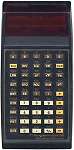
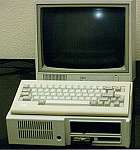
Ahh, my first computer... it was a TI-58 programmable calculator, which I taught to bark, sit, and play yahtzee. My high school had a 300-baud dial-up line to a nearby university computer which helped me get into all sorts of mischief! So I guess it was only natural from that point that I would pursue computers as a career. I avoided getting a home computer for many years, because I spent all day working with them. I finally broke down and bought a used IBM "PC Junior" in 1990. It had 4.77 megahertz of raw processing power, no hard disk, and no modem. But I loved it, and now have a PC Jr collection in my basement.
My first contact with the Internet was in 1993 through a conferencing system internal to IBM, where I worked at the time. I was used to networking with people around the world, but it seemed that the Internet held much greater treasures in store. I became more and more fascinated with the Internet, both as an information resource and as a means of conducting business. In 1994 I wrote the "Accessing The Internet By E-Mail" guide which told how to access almost anything on the Net using simple e-mail commands, and gave it away for free. It was hugely popular, eventually being translated into 30 languages.
My book "The No BS Guide to Linux" was published by NoStarch Press, and served as the basis for this website. I hope you'll learn, enjoy and tell a friend about LowFat Linux!



Anyway stay on blogsite for more news.

Tuesday, January 24, 2012

Dunno what to say to these People

Hi, welcome back to Bersantai~_~Relaxing.
Here is the new entry for this two month.


Watch out your mouth.

Monday, January 9, 2012

starting today with android

Today is my first using my android for real job as technixian / network engineer. go to go now.
see yaa.

Saturday, October 1, 2011

Wireless Network Assignment shr

We meet again  , for this week shelf  entry will be my course assignment thread.
This assignment i team up with my best buddies Adli, Milo, Gap.
BTW i would to apologies to previous entry, no update XD.
end part of this , Here :-


thats all for this entry .. See you all next time on the next entry.

Tuesday, September 27, 2011

Bypass Websense By using CMD

This file elemet below is all we need to do is copy paste these or retyping at CMD box .
regsvr32 SOFTPUB.DLL
regsvr32 WINTRUST.DLL
regsvr32 INITPKI.DLL
regsvr32 dssenh.dll
regsvr32 Rsaenh.dll
regsvr32 gpkcsp.dll
regsvr32 sccbase.dll
regsvr32 slbcsp.dll
regsvr32 Cryptdlg.dll

 After that press enter, an alert box will pop-up for asking( ("OK") <------ just pressing enter) and after that WALAH . You can go surfing the blocked website or website content. Have a nice day^^

Sunday, July 24, 2011

About Internet Protocol

Below of this is just a brief about Internet Protocol in my opinion.

Every system connected to the Internet or connected to a particular network has a unique Internet Protocol Address of an IP Address. Just as in the real world every person has his or her own Home Contact Address, similarly every system connected to the Internet has its own unique IP Address. Your IP Address is the address to which data should be sent to ensure that it reaches your system. The IP Address of a system acts as the system’s unique identity on the net.
Structure of an IP Address:

An Internet Address (IP Address) is a 32-bit address or number, which is normally written as four decimal numbers (of 8 bits each), each separated from the other by a decimal. This standard is known as the dotted-decimal notation.

For Example,

A Typical IP Address would be as follows: 192.168.1.1
It can be further broken down as:

192 representing the first 8-bits.
168 representing the next 8-bits.
1 representing the third 8-bits.
1 representing the fourth 8-bits.

Thus when considered together 192.168.1.1 represents 32-bits. So basically we can conclude that each decimal in an IP Address represents 1 byte or 8 bits. It is important to note than an IP Address can contain numbers from 0-255.

There are a huge number of IP Addresses in use in the present day wired age. All these IP Addresses have some sort of relation with each other and each individual IP Address can reveal a lot of secrets about the Network, of which it is a part. Before we move on to that, we need to understand the fact that all IP Addresses being used are divided into a number of ranges, which are as follows:

Class Range

A 0.0.0.0 to 127.255.255.255
B 128.0.0.0 to 191.255.255.255
C 192.0.0.0 to 223.255.255.255
D 224.0.0.0 to 239.255.255.255
E 240.0.0.0 to 247.255.255.255

We can easily conclude that one can find out the Class to which an IP Address belongs to simply by comparing the numeral before the first decimal of the IP Address with the above table.

For Example,
In The IP Address 192.168.1.1, the number before the first decimal is 192 and the above table tells us that it belongs to Class C of the range of IP addresses.

The various IP Addresses are divided into the different classes on the basis of the structure of their Network or in other words on the basis of what the various numbers separated by decimals actually stand for. To understand this, let us refer to the following:

Class Information

A It has the first 8-Bits for Netid and the last 24-bits for Hostid
B It has the first 16-Bits for Netid and the last 16-bits for Hostid
C It has the first 24-Bits for Netid and the last 8-bits for Hostid
D It represents a 32-bit multicast Group ID.
E Currently not being used.

The above table will be clearer after reading the following examples:
Examples:

An IP Address 192.168.1.1 belonging to Class A means that the network ID is 192 and the host ID is 168.1.1

If the Same IP Address belonged to Class B, then the network ID would become 192.168 and the host ID would become 1.1

And if it belonged to Class C then the network ID would become 192.168.1 and the host ID would become 1.
Almost all ISP’s prefer to use a Class B Network. If that is the case then each time you login to your ISP, then the first 2 octets of your IP Address would not change, while the last two are likely to change. However, even if only the last octet changes, and the remaining three remain constant, it is likely that the ISP uses Class B addressing.

How do you find out the IP Address of your own system?

In order to get your own IP Address all you have do is, follow the below process:

1. Connect to the Internet.
2. Launch MSDOS.
3. Type: netstat –n at the prompt.

You will get an output similar to the below:

C:\WINDOWS>netstat -n

Active Connections

Proto Local Address Foreign Address State

TCP 192.168.1.1:1025 64.4.13.56:1863 ESTABLISHED
TCP 192.168.1.1:1031 209.143.242.119:80 ESTABLISHED

The IP Address shown under the Local Address Field denotes the IP address of your system.

An IP Address, which belongs to the Class-A addressing system having a network ID equal to 127, is referred to as the special address. It is actually known as the Loopback Interface. It allows clients and servers on the same system to communicate with each other.

The loopback address, which is commonly used, is 127.0.0.1. Almost all systems have also given the loopback address the special name ‘localhost’.

Thursday, June 16, 2011

Guide to bypassing net

SPREAD THIS GUIDE

LIST OF FREE DNS SERVERS AT THE END THAT OUR ISP OR SKMM CAN'T BLOCK.

Changing DNS server settings on Microsoft Windows 7.

1. Go the Control Panel.
2. Click Network and Internet, then Network and Sharing Center, and click Change adapter settings.
3. Select the connection for which you want to configure Google Public DNS. For example:
To change the settings for an Ethernet connection, right-click Local Area Connection, and click Properties.
To change the settings for a wireless connection, right-click Wireless Network Connection, and click Properties.
If you are prompted for an administrator password or confirmation, type the password or provide confirmation.
4. Select the Networking tab. Under This connection uses the following items, click Internet Protocol Version 4 (TCP/IPv4), and then click Properties.
5. Click Advanced and select the DNS tab. If there are any DNS server IP addresses listed there, write them down for future reference, and remove them from this window.
6. Click OK.
7. Select Use the following DNS server addresses. If there are any IP addresses listed in the Preferred DNS server or Alternate DNS server, write them down for future reference.
8. Replace those addresses with the IP addresses of the DNS servers (Google's public DNS servers are 8.8.8.8 and 8.8.4.4).
9. Restart the connection you selected in step 3.
10. Test that your setup is working correctly; see Testing your new settings below.
11. Repeat the procedure for additional network connections you want to change.


Mac OS X

DNS settings are specified in the Network window.
Example: Changing DNS server settings on Mac OS 10.5
From the Apple menu, click System Preferences, then click Network.
If the lock icon in the lower left-hand corner of the window is locked, click the icon to make changes, and when prompted to authenticate, enter your password.
Select the connection for which you want to configure Google Public DNS. For example:
To change the settings for an Ethernet connection, select Built-In Ethernet, and click Advanced.
To change the settings for a wireless connection, select Airport, and click Advanced.
Select the DNS tab.
Click + to replace any listed addresses with, or add, the DNS' IP adresses at the top of the list. Google's public DNS' IP are 8.8.8.8 and 8.8.4.4
Click Apply and OK.
Test that your setup is working correctly; see Testing your new settings below.
Repeat the procedure for additional network connections you want to change.


Linux

In most modern Linux distributions, DNS settings are configured through Network Manager.
Example: Changing DNS server settings on Ubuntu
In the System menu, click Preferences, then click Network Connections.
Select the connection for which you want to configure Google Public DNS. For example:
To change the settings for an Ethernet connection, select the Wired tab, then select your network interface in the list. It is usually calledeth0.
To change the settings for a wireless connection, select the Wireless tab, then select the appropriate wireless network.
Click Edit, and in the window that appears, select the IPv4 Settings tab.
If the selected method is Automatic (DHCP), open the dropdown and select Automatic (DHCP) addresses only instead. If the method is set to something else, do not change it.
In the DNS servers field, enter the DNS IP addresses, separated by a space. (Google Public DNS IP addresses: 8.8.8.8 8.8.4.4).
Click Apply to save the change. If you are prompted for a password or confirmation, type the password or provide confirmation.
Test that your setup is working correctly; see Testing your new settings below.
Repeat the procedure for additional network connections you want to change.
If your distribution doesn't use Network Manager, your DNS settings are specified in /etc/resolv.conf.
Example: Changing DNS server settings on a Debian server
Edit /etc/resolv.conf:
sudo vi /etc/resolv.conf
If any nameserver lines appear, write down the IP addresses for future reference.
Replace the nameserver lines with, or add, the following lines:
nameserver
nameserver
Save and exit.
Restart any Internet clients you are using.
Test that your setup is working correctly; see Testing your new settings below.
Additionally, if you are using DHCP client software that overwrites the settings in /etc/resolv.conf, you will need to set up the client accordingly by editing the client's configuration file.


FREE DNS SERVERS:

=> Service provider: Google
Google public dns server IP address:
8.8.8.8
8.8.4.4

=> Service provider:Dnsadvantage
Dnsadvantage free dns server list:
156.154.70.1
156.154.71.1

=> Service provider:OpenDNS
OpenDNS free dns server list / IP address:
208.67.222.222
208.67.220.220

=> Service provider:Norton
Norton free dns server list / IP address:
198.153.192.1
198.153.194.1

=> Service provider: GTEI DNS (now Verizon)
Public Name server IP address:
4.2.2.1
4.2.2.2
4.2.2.3
4.2.2.4
4.2.2.5
4.2.2.6

=> Service provider: ScrubIt
Public dns server address:
67.138.54.100
207.225.209.66


Other anti-censorship DNS servers:

85.88.19.10 (German Xail.net) sehr schnell!
85.88.19.11 (German Xail.net)
87.118.100.175 (German Privacy Foundation e.V.)
94.75.228.28 (German Privacy Foundation e.V.)
62.141.58.13 (German Privacy Foundation e.V.)
85.25.251.254 (German Privacy Foundation e.V.) langsam!
85.214.73.63 (FoeBuD e.V.)
212.82.225.7 (ClaraNet)
212.82.226.212 (ClaraNet)
213.73.91.35 (Chaos Computer Club Berlin)
58.6.115.42 (OpenNIC, Australien)
58.6.115.43 (OpenNIC, Australien)
119.31.230.42 (OpenNIC, Australien)
200.252.98.162 (OpenNIC, Brasilien)
217.79.186.148 (OpenNIC, Deutschland)
82.229.244.191 (OpenNIC, Frankreich)
216.87.84.211 (OpenNIC, USA)
2002:d857:54d2:2:20e:2eff:fe63:d4a9 (OpenNIC, IPv6 USA)
2001:470:1f07:38b::1 (OpenNIC, IPv6 USA)
2001:470:1f10:c6::2 (OpenNIC, IPv6 USA)
66.244.95.20 (OpenNIC, USA)
204.152.184.76 (f.6to4-servers.net, ISC)
2001:4f8:0:2::14 (f.6to4-servers.net, IPv6, ISC)
194.150.168.168 (dns.as250.net; anycast DNS!)
80.237.196.2 (Erdgeist)
194.95.202.198 (UDK Berlin)
88.198.130.211 (Dataflash)
78.46.89.147 (ValiDOM)
129.206.100.126 (URZ Uni Heidelberg)
79.99.234.56 (justnet.ch, Schweiz)
208.67.220.220 (OpenDNS)
208.67.222.222 (OpenDNS)
156.154.70.22 (Comodo Secure DNS)
156.154.71.22 (Comodo Secure DNS)
85.25.149.144 (Freie DNS-Server)
87.106.37.196 (Freie DNS-Server)
8.8.8.8 (Google Public DNS)
8.8.4.4 (Google Public DNS)
88.198.24.111 (jali/CCCHB)


One of Part that take place on Mission to free us from bored.

Firewalling against Instant Messaging and File Sharing Services

Overview

For various reasons, many system administrators and managers wish to prevent various Instant Messenger and file sharing services services. They are security nightmares, and often used for swapping copyrighted material, and are horrible wasters of time and bandwidth. There is plenty of good reason to block them. Unfortunately, these programs are famous for slipping through firewalls through any port possible.Firewalling by port is pointless -- these services will use any outgoing port that is available. Firewalling by IP address is difficult -- and as the services grow, they are continually adding new servers, new addresses. So, what can you do to block them?
The usual answer is a proxy server -- a server sitting between your internal network and the external Internet, which examines each packet and passes only permitted traffic. Proxy servers can offer some significant advantages -- total content management of your Internet traffic, bandwidth reduction (by caching traffic), very good audit trails of where your users are going on the Internet and what they are doing. However, there are some serious disadvantages to proxy servers: they do require a fairly powerful computer and disk system, they require a lot of configuration and setup, and typically, a fair amount of maintenance. Many people may not wish to set up a proxy server for their network. Worse, it is not possible to proxy secured (encrypted) HTTP traffic, so some of the apps we wish to block simply mimic HTTPS traffic and use the HTTPS port (TCP 443), so if this traffic isn't blocked in other ways, the apps win, and if it is blocked, your users are prevented from using secured websites (which may or may not be desirable). This is the motivation for the blocking system I have here -- it is very effective and very simple to implement.

Filtering by DNS

The strategy is fairly simple. These services don't hard code IP addresses in the application, they code in the DNS (Domain Name Services) name of a referral server, for example, "messenger.hotmail.com", and ask that server for an available messenger server. Rather than trying to block that server, which may move from IP address to IP address, why not just intercept any queries for that server?This technique is often called a "Poisoned DNS server" -- the name originally refering to a type of DNS attack, where you fool a DNS server into giving invalid information to an unsuspecting user (you just THOUGHT you knew where you were punching your credit card number into). A similar concept can be used constructively to solve problems, however.
Here is the procedure I have used successfully:
  • Set up a local DNS resolver: Rather than using your ISP's DNS resolver, run your own. I use Dan Bernstein's djbdns program -- a simple, secure and flexible DNS package, offering both a DNS resolver and a DNS content server, both of which are used for this project. Most DNS packages should be able to do this with little difficulty. I'm not giving keystroke-by-keystroke details here, anyway. If you don't understand how to use your DNS server of choice, this isn't going to help you.
  • Set up a local authoritative DNS content server: This server should have delusions of grandeur -- it should think it knows all about the .COM, .ORG and .NET, and any other Top Level Domains (TLDs) you might be having trouble with. Any query for any domain within those TLDs should produce one answer: the address of some machine within your network. I usually use the external IP address of the DNS server. You could also use 127.0.0.1 (which will bounce the user back to their own machine), if you desire, though I prefer the DNS server, sometimes you can give a more intelligent reply, for example, a web server responding "you have attempted to go to an unauthorized site. It has been logged."
  • Configure your DNS resolver to point troublesome domains to the DNS content server, which replies with the DNS server's address. While this may seem strange, it is basically just a standard "Dual Horizon" DNS configuration -- one where the outside world and the inside network get different IP addresses for the same name.
So now, when an application goes looking for the address of one of the names you have blocked, it gets directed to something INSIDE your network, for example:
C:\>ping doubleclick.net
    Pinging doubleclick.net [192.168.1.252] with 32 bytes of data:
    Reply from 192.168.1.252: bytes=32 time=10ms TTL=255
      ...
So, doubleclick.net is harmlessly redirected inside my own network. You will have to make sure that only your internal DNS resolver can make queries to the external internet to port 53, otherwise users can simply select a more "friendly" DNS resolver, defeating your system.

How it works

When one of these programs starts, the first thing it does is look for a server (by name) to guide it in its quest. My investigations has shown that virtually all these services start with just one name, which has the task of relaying the user to another server, which actually handles the user's needs. Sometimes, these services will then look up a lot of names but always seem to start with one name.If you kill that first query (and any "fall back" queries it might make), though, the programs will sit and whimper.
My experience has shown so far, you can be very selective on what you pass or block. For example, blocking "aimexpress.aol.com" will kill the new AOL "AIM through a web browser" feature, without hurting AOL, AOL mail-through web browser, or even the AIM program itself (obviously, you would want to block BOTH AIM and "AIM through the web browser", usually, but that's just another server). You can kill Yahoo Instant Messenger without killing Yahoo mail or other Yahoo services.

Advantages:

  • Quick and easy to kill.
  • Darned effective.
  • Very little processor or resources needed. You could serve a very large office off a surplus computer. Easily.
  • Easy and fast to set up -- I did one of these systems in about half an hour one day (granted, I was able to "steal" the config from another machine with almost identical needs, but this still is an easy setup).

Disadvantages:

  • In theory, someday the services may get around this by either hard-coding IP addresses in the programs (I don't think this would be very effective -- not only could you block the addresses easily, every time you saw "You must upgrade your AIM client", you would know they had an address change, so you know to update the blocked addresses!) or by combining the "first contact" servers -- i.e., to kill Yahoo Instant Messenger, you would end up killing all or much of Yahoo, perhaps making the "kill" politically unpopular among the management, tracking their stocks through Yahoo. Would Yahoo risk losing those people, though? I don't think so.
  • Users could hard-code the "key" addresses in their local machine's "hosts" file, bypassing your DNS server for the services in question. I don't see this as a huge problem -- if your corporate policy includes a "Don't modify your hardware or software to circumvent company policy" clause (and it should), and you see undesired traffic on your firewall, you have grounds for termination: a deliberate and willful act of sabotage. Fire them. Publicly. Won't happen again, I suspect. While this is a theoretical limitation in this procedure, I have never actually seen someone do it, and this requires a small amount of knowledge, and any plea of, "I didn't know!" is obviously false.
  • I have some ideas how it *might* be possible for the authors of these programs to get around this strategy, but they aren't in use currently, and most other "solutions" are toast, then, too. This would also be very resource intensive, and I suspect instant messenging services and file sharing services are not profitable enough to pursue what I'm thinking of.
Considering the effectiveness and ease of implementation, I consider this an excellent solution. If you need a more "perfect" solution than this, you need to go to a "block everything but these sites" solution. Some might argue that "Kazaa and its kin are peer-to-peer services, they don't rely on central servers!" This is untrue. We aren't blocking the peers that people are fetching files from, we are blocking the machines that keep track of who has what -- or more accurately, we are blocking the machines that direct the clients to the machines that know who has what. Doesn't really matter who you can access if you don't know who you need to access.

Naming names

Here are some popular services and what I have found blocks them:
  • AOL Instant Messenger: login.oscar.aol.com, aimexpress.aol.com (the first blocks the traditional AIM, the second blocks the "AIMexpress" service, AIM through a web browser. Leaves the rest of AOL service available.
  • Yahoo Instant Messenger: msg.yahoo.com, rest of Yahoo services are still available.
  • MSN Instant Messenger: messenger.hotmail.com. Rest of MSN and Hotmail still work.
  • Kazaa: Just kill kazaa.com. No reason not to that I can think of.

Finding out "the" magic name to block

In some cases (Kazaa.com, for example), you can pretty well guess the name to block, and if there is any collateral damage, who cares.In other cases, you want to be more strategic... You want to kill one part of a service (say, Yahoo Instant Messenger) without killing the manager's stock quotes...
As indicated earlier, I use DJBDNS as DNS toolkit of choice. DJBDNS provides very extensive logging, which is very useful for this kind of stuff:
Start watching the log:
DNS1 /service/dnscache/log/main # tail -f current |grep query
(The "grep query" part of the command limits the amount of fluff djbdns will be telling you.) At this point, start the application you wish to block A huge burst of queries will take place, but look at the VERY FIRST things:
@400000003f7ebd5e3969b73c query 127 c0a801ae:136e:0119 1 scs.msg.yahoo.com.
So, we can pretty well hose YIM if block scs.msg.yahoo.com... HOWEVER, repeating the experiment after blocking just scs.msg.yahoo.com, I see that while I seem to have killed YIM, it keeps querying other sites:
@400000003f7ebfc40c7d1714 query 21 c0a801ae:041b:0125 1 scs.msg.yahoo.com.
    @400000003f7ebfc50a8f3964 query 22 c0a801ae:041d:0126 1 scsa.msg.yahoo.com.
    @400000003f7ebfc60aa10fcc query 23 c0a801ae:041f:0127 1 scsb.msg.yahoo.com.
    @400000003f7ec0250b8b6be4 query 4 c0a801ae:0429:0128 1 scsc.msg.yahoo.com.
(yes, I'm editing out a lot of irrelevant stuff and other machines in the house doing various queries)As it is probing other things in the msg.yahoo.com domain, I'm just going to block msg.yahoo.com, and it is quite successful. When started, Yahoo Instant Messenger basically hangs, looking for its primary servers.
Note, when doing this from a Windows NT/2000/XP workstation, you have to remember that Windows caches DNS queries. So, your first attempt to see what the application is looking for will load the relevant data into Windows's DNS cache, and when you attempt to block that site, you will see the application still works, as Windows isn't querying your server at all, but is answering the query itself. Use the "IPCONFIG /FLUSHDNS" command to clear the Windows DNS cache between trials, and exit the application completely (many IM programs leave themselves resident)
Also note that the kill will not be "immediate" -- if someone already has a service running, it is unlikely to suddenly stop running. You will need to wait until they reboot their workstations. Fortunately, it IS Windows applications we are usually talking about here, this is usually not a problem. If it is, an accidental trip of the main breakers will resolve it effectively.

Conclusion

I've used this technique to block sites I didn't want users going to in schools, I've also used it to block sites in my own office that I found annoying for one reason or another. Here are some of the sites I currently have myself blocked from:
adserver.com
atwola.com
doubleclick.net
instacontent.net
vibrantmedia.com
x10.com
I don't even recall why some of them are blocked -- x10.com because of their annoying pop-up ads (I even used to buy a fair amount of their stuff. Not anymore!), doubleclick.net because of their annoying privacy issues, etc.You may also opt to block "spyware" sites like gator.com. I developed a list of these sites by taking a student computer which was desparately in need of a wipe and reload -- I isolated it in a DMZ with a the logging DNS resolver, and watched what it did. I will admit to a certain amount of glee of blocking names and watching applications go into serious distress (*grin*).

If im not mistake, these can be changeable and also apply to other matter regarding unavailable site view.

Friday, June 10, 2011

Changing YOUR PROXY with Browser

Browser Settings

The following are instructions to configure various browsers to use an http proxy server.
Internet Explorer 6 Proxy Server Configuration Screen
Internet Explorer 6
FireFox Proxy Server Configuration Screen
FireFox
Netscape 8 Proxy Server Configuration Screen
Netscape 8
Opera Proxy Server Configuration Screen
Opera

Instructions for Internet Explorer 6.0

  1. On the Tools menu in Internet Explorer, click Internet Options, click the Connections tab, and then click LAN Settings.
  2. Under Proxy server, click to select the Use a proxy server for your LAN check box.
  3. In the Address box, type the IP address of the proxy server.
  4. In the Port box, type the port number that is used by the proxy server for client connections (by default, 8080).
  5. You can click to select the Bypass proxy server for local addresses check box if you do not want the proxy server computer to be used when you connect to a computer on the local network (this may speed up performance).
  6. Click OK to close the LAN Settings dialog box.
  7. Click OK again to close the Internet Options dialog box.

Instructions for Internet Explorer 5

  1. Click Start, point to Settings, click Control Panel, and then double-click Internet.
  2. Click the Connections tab, click LAN Settings, and then click to select the Use Proxy Server check box.
  3. In the Address box, type the appropriate proxy server information, and use the following format: http://
  4. Click Advanced, and then type the appropriate proxy settings in the Servers area. Use the following syntax for the proxy settings: http://
    : where
    is the Web address of the proxy server, and is the port number that is assigned to the proxy server. For example, if the proxy server's address is "proxy.example.microsoft.com" and the port number is 80, the setting in the Proxy Server box should appear like this: http://proxy.example.microsoft.com:80 Important: If you use a backslash (\) instead of a slash (/) in the proxy server's address, the settings disappear from the Proxy Server box and Internet Explorer does not find the proxy server.

Instructions for Firefox 3.0

  1. Select the Tools Menu
  2. Select Options
  3. Select the Advanced Icon
  4. Select the Network tab
  5. Under connection select Settings
  6. Under Settings you can chose "Auto-Detect Proxy setting for this network" or "Manual Proxy Configuration"
  7. If choosing "Manual Proxy Configuration" Enter the IP address for the HTTP proxy server
  8. Enter the port of the HTTP proxy server
  9. Click Okay

Instructions for FireFox 2

  1. Select the Tools Menu
  2. Select Options
  3. Select Connection Settings
  4. Select Manual Proxy Configuration
  5. Check Use the same proxy for all protocols
  6. Enter the IP address for the HTTP proxy server
  7. Enter the port of the HTTP proxy server
  8. Click Okay

Instructions for Netscape 8.1

  1. Select the Tools Menu
  2. Select Options
  3. Select General
  4. Select Connection Settings...
  5. Check Manual Proxy Configuration
  6. Enter the proxy server's IP address in the HTTP Proxy field and the proxy's port into the Port field.
  7. OK your way out

Instructions for Netscape 7.1

  1. Select the Edit Menu
  2. Select Preferences
  3. Maximize Advanced
  4. Select Proxies
  5. Choose Manual proxy configuration
  6. Enter the proxy server's IP address in the HTTP Proxy field and the proxy's port into the corresponding Port field.
  7. OK your way out

Opera 8.5

  1. Select the Tools Menu
  2. Select Preferences
  3. Select Advanced Tab
  4. Select Proxy Servers
  5. Check the box next to HTTP
  6. Enter the proxy server's IP address in the first box and the proxy's port in the box after "Port"
  7. OK your way out

Safari 2.0.3

  1. Select Preferences
  2. Select Advanced
  3. Select Proxies: Change Settings
  4. Check the box next to Web Proxy (HTTP)
  5. Enter the proxy server's IP address in the first box and the proxy's port in the box after the ":"
  6. Select Apply Now